
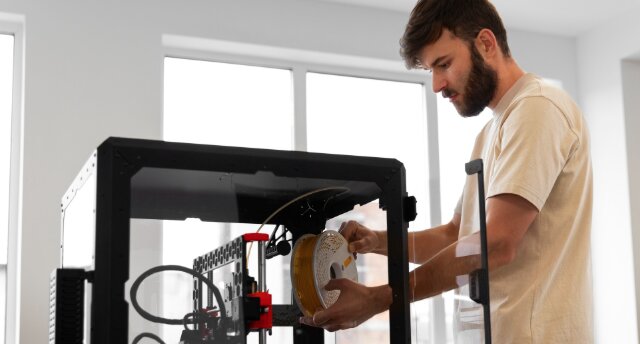
Getting a new 3D printer is exciting, but the initial setup process can feel overwhelming if you’ve never used one before. Fortunately, most modern 3D printers are much easier to set up than earlier models, and following the correct steps can help you avoid many common printing problems.
Whether you have an FDM printer that uses filament or you’re setting up your first machine after upgrading from an older model, this guide covers everything needed to get your printer assembled, calibrated, and ready for successful prints.
Why Proper 3D Printer Setup Matters
Many print quality issues are caused by setup mistakes rather than hardware defects. Problems such as poor bed adhesion, layer shifting, stringing, uneven surfaces, and failed prints often trace back to improper assembly or calibration.
A properly configured printer offers several benefits:
- Better first-layer adhesion
- More accurate dimensions
- Higher print quality
- Fewer failed prints
- Longer component lifespan
- Less wasted filament
- Reduced maintenance requirements
Spending an extra hour during setup can save countless hours troubleshooting later.
What You Need Before Setting Up Your 3D Printer
Before beginning, gather the following items:
Essential Tools
- Included printer tools
- Flush cutters
- Small screwdriver set
- Isopropyl alcohol
- Microfiber cloth
- Flashlight
- USB drive or SD card
Materials
- Compatible filament
- Printer manual
- Sample print files
- Stable work surface
Most printers include basic tools, but having a few extras nearby makes the process easier.
Step 1: Choose the Right Location
The location of your printer affects both print quality and safety.
Ideal Placement Requirements
Your printer should sit on:
- A sturdy, level surface
- A vibration-free desk or table
- A well-ventilated room
- An area with stable temperatures
- A location away from direct sunlight
Avoid These Locations
Do not place your printer:
- Near open windows
- Next to air conditioning vents
- Close to heaters
- In humid environments
- On unstable furniture
Drafts and temperature fluctuations can cause warping and poor layer adhesion.
Space Requirements
Leave adequate clearance around the printer:
- 12 inches behind the printer
- 12 inches on each side
- Sufficient room above the frame
- Easy access for maintenance
This makes loading filament and servicing components much easier.
Step 2: Unbox and Inspect the Printer
Carefully remove all packaging materials.
During unboxing:
- Inspect for shipping damage
- Verify all parts are included
- Remove zip ties and foam inserts
- Check cables for damage
- Locate the user manual
Pay special attention to moving components such as the gantry, belts, and print bed.
If anything appears damaged, contact the manufacturer before proceeding.
Step 3: Assemble the Printer
Assembly requirements vary depending on the printer model.
Fully Assembled Printers
Many beginner-friendly printers arrive nearly assembled. Setup may only require:
- Installing the spool holder
- Attaching the display
- Connecting cables
- Removing shipping brackets
Semi-Assembled Printers
Some printers require:
- Mounting the gantry
- Installing the touchscreen
- Attaching support braces
- Connecting wiring harnesses
Assembly Tips
When assembling:
- Tighten screws evenly
- Do not overtighten fasteners
- Follow the manual step-by-step
- Double-check cable connections
- Verify all axes move freely
Rushing assembly often leads to alignment issues later.
Step 4: Check Frame Alignment
Before powering on the printer, inspect the frame.
Verify Squareness
Check that:
- Vertical supports are straight
- Gantry rails are level
- Frame corners are square
- No components wobble
Even minor alignment issues can affect print quality.
Inspect Wheels and Bearings
Move each axis manually.
The movement should feel:
- Smooth
- Consistent
- Free of grinding
- Free of excessive resistance
If movement feels rough, inspect wheels, rails, or bearings.
Step 5: Inspect and Adjust Belt Tension
Belts control movement accuracy.
Signs of Loose Belts
Loose belts may cause:
- Layer shifting
- Ghosting
- Inaccurate dimensions
- Surface artifacts
Signs of Overtightened Belts
Belts that are too tight may:
- Wear prematurely
- Stress motors
- Create vibration
- Increase noise
A properly tensioned belt should feel firm while still allowing slight flex.
Step 6: Power On and Update Firmware
After assembly, connect power and start the printer.
Initial Startup Checklist
Confirm that:
- Display powers on correctly
- Fans operate normally
- Menus respond properly
- No unusual noises occur
Check Firmware Version
Manufacturers frequently release firmware updates that improve:
- Stability
- Print quality
- Safety features
- Bug fixes
Updating firmware early prevents future compatibility issues.
Step 7: Perform Axis Movement Tests
Use the printer controls to test motion.
X-Axis Test
Move the print head left and right.
Look for:
- Smooth movement
- No skipping
- No grinding sounds
Y-Axis Test
Move the bed forward and backward.
Verify:
- Consistent travel
- No binding
- Stable movement
Z-Axis Test
Raise and lower the gantry.
Watch for:
- Smooth travel
- Even movement
- No wobble
Identifying mechanical issues now is easier than troubleshooting failed prints later.
Step 8: Level the Print Bed
Bed leveling is one of the most important setup procedures.
The nozzle must maintain a consistent distance from the build surface across the entire bed.
Manual Bed Leveling
For manual leveling:
- Home all axes
- Disable steppers if required
- Move the nozzle to each corner
- Place a sheet of paper beneath the nozzle
- Adjust leveling knobs
- Repeat several times
The paper should slide with slight resistance.
Automatic Bed Leveling
Many modern printers include auto-leveling sensors.
Even with automatic leveling:
- Verify sensor operation
- Set the correct Z-offset
- Run calibration routines
Auto-leveling improves consistency but does not eliminate all setup requirements.
Step 9: Set the Correct Z-Offset
The Z-offset determines how close the nozzle sits to the print surface.
Nozzle Too High
If the nozzle is too high:
- Filament won’t stick
- First layers become inconsistent
- Prints may fail immediately
Nozzle Too Low
If the nozzle is too low:
- Filament gets squished excessively
- Surface damage can occur
- Extrusion becomes restricted
Fine-tuning the Z-offset is critical for successful first layers.
Step 10: Load Filament Properly
Once calibration is complete, install filament.
Preheat the Nozzle
Heat the nozzle according to filament type.
Typical temperatures:
- PLA: 190°C–220°C
- PETG: 220°C–250°C
- ABS: 230°C–260°C
Insert Filament
Feed filament into the extruder until it reaches the hotend.
Verify that:
- Filament extrudes smoothly
- No grinding occurs
- Extrusion is consistent
This confirms the feed path is functioning correctly.
Step 11: Configure Slicer Software
The slicer converts 3D models into printer instructions.
Popular slicers include:
- Cura
- OrcaSlicer
- PrusaSlicer
- Bambu Studio
Import Your Printer Profile
Most manufacturers provide official printer profiles.
These profiles automatically configure:
- Build volume
- Print speeds
- Temperatures
- Retraction settings
Starting with a proven profile reduces setup errors.
Step 12: Print a Calibration Model
Before printing large projects, run a calibration print.
Recommended Test Prints
Good beginner calibration models include:
- Calibration cube
- Benchy boat
- First-layer test
- Temperature tower
These prints reveal issues that may need adjustment.
What to Check
Inspect for:
- Layer consistency
- Sharp corners
- Proper adhesion
- Smooth surfaces
- Dimensional accuracy
Make small adjustments as necessary.
Common Setup Mistakes to Avoid
Skipping Bed Leveling
Many beginners assume factory calibration is sufficient.
Always verify leveling before printing.
Ignoring Belt Tension
Loose belts are a major source of print defects.
Using Poor Filament
Low-quality filament can create problems that appear to be printer issues.
Printing Too Fast
Begin with conservative settings until the printer is fully dialed in.
Neglecting Maintenance
Regular cleaning prevents many common problems.
Essential Maintenance After Setup
Once the printer is operating correctly, establish a maintenance routine.
Weekly Tasks
- Clean the build plate
- Remove dust
- Inspect belts
- Check nozzle condition
Monthly Tasks
- Lubricate moving parts
- Verify frame tightness
- Check wheel wear
- Inspect wiring
Every Few Months
- Recalibrate the bed
- Deep clean the printer
- Check firmware updates
- Replace worn components
Consistent maintenance helps maintain print quality over time.
Troubleshooting Setup Problems
Filament Will Not Stick
Possible causes include:
- Dirty bed
- Incorrect Z-offset
- Low bed temperature
- Poor leveling
Extruder Clicking
Possible causes include:
- Nozzle clog
- Low nozzle temperature
- Filament jam
- Excessive print speed
Uneven First Layer
Possible causes include:
- Improper leveling
- Bent build plate
- Incorrect mesh calibration
Addressing these issues early improves long-term reliability.
Final Thoughts
Learning how to set up a 3D printer properly is one of the most valuable skills for any maker. A careful setup process establishes the foundation for successful printing, reduces troubleshooting, and helps maximize the lifespan of the machine.
Most modern printers can be fully assembled, calibrated, and printing within a few hours. Taking the time to verify alignment, level the bed, adjust the Z-offset, and run calibration prints ensures the best possible results from day one.
Once the initial setup is complete, regular maintenance and occasional recalibration will keep the printer performing reliably for years to come.